 xOTT
xOTTCPU/GPU transcoding: configure and verify
Enable optional stream and VOD encoding, choose H.264 profiles, test host readiness and control processing capacity.
On this page
Copy, source selection and transcoding are different
| Choice | Actual operation |
|---|---|
| Original / copy | Preserves the source codecs where compatible; remuxing/container conversion may still occur. Default behavior. |
| Source-quality preference | Selects a real existing source rendition; a cap alone does not encode video. |
| Transcode | Uses a saved profile and CPU or compatible GPU to re-encode the selected input. |
| Source multi-quality HLS/DASH | Publishes compatible existing renditions; separate from generating a new adaptive ladder. |
The current profile contract is one H.264, SDR, 8-bit 4:2:0 output rendition up to 1080p without upscaling. UI presets offer 480p, 720p and 1080p maximums. It is not a 4K/HDR or arbitrary-codec transcoder.
1. Enable processing conservatively
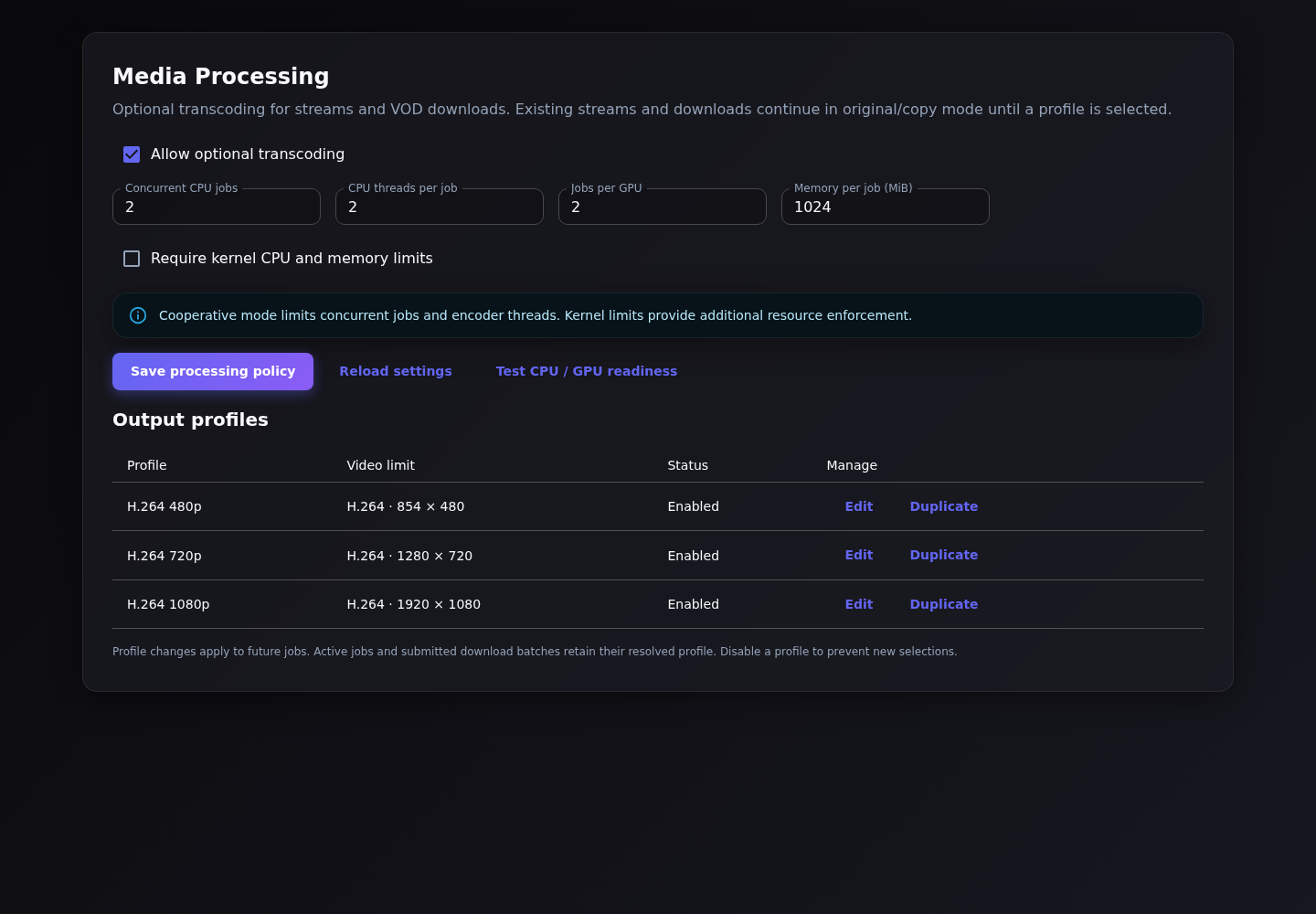
- Open Settings → Media Processing. Existing channels remain Original / copy until selected otherwise.
- Set Allow optional transcoding. Start with conservative Concurrent CPU jobs, CPU threads per job, Jobs per GPU and Memory per job limits.
- Decide whether to require kernel CPU/memory limits. Cooperative concurrency/thread limits are not kernel-enforced isolation.
- Save processing policy. Run Test CPU / GPU readiness. Read the results before selecting a device.
2. Confirm the actual host is ready
CPU uses the available software encoder. Compatible hardware paths include NVIDIA NVENC, VAAPI and Intel QSV when the host, driver, device permissions and FFmpeg build pass diagnostics. A listed GPU model or encoder name alone is not sufficient. Synthetic readiness is not a sustained capacity benchmark.
| Processing device | Fallback policy |
|---|---|
| Automatic — GPU preferred, CPU allowed | Can select a suitable hardware backend and use CPU where the supported policy allows. CPU capacity is still required. |
| CPU only | Uses CPU admission and thread limits. |
| GPU only | Requires usable hardware; it does not silently become a CPU job. |
Workers must be checked on the processing host, not inferred from the controller. Readiness and load can change; preflight is a current observation, not a future reservation.
3. Create a profile
- Under Output profiles, duplicate an existing profile or edit the intended one.
- Choose a descriptive name, maximum resolution and encoder effort. A 1080p maximum will not upscale a 720p source.
- Set target/max video bitrate and buffer values appropriate to content and receivers. Higher effort consumes more processing time.
- Keep the profile enabled for new jobs, save it, then reselect the current revision where needed.
Profile changes apply to future jobs. Already submitted batches and active jobs retain their resolved profile. Disable a profile to prevent new selections; that is not an instruction to kill every active job.
4. Test one stream
- Open the saved stream’s settings and select the actual desired source tracks.
- Set Media processing → Transcode, then choose an enabled Output profile and Processing device.
- Use Check server availability. Confirm the intended placement and per-host capacity.
- Save and perform the required controlled start/restart. Check the log, output codec/resolution, advancing video, audio and receiver playback.
- Measure sustained CPU/GPU/memory and egress before applying the profile to a batch.
5. Use encoding for a VOD download
Choose Transcode, a profile and the intended storage destination in the download workflow. A native worker destination moves supported download/processing work to that worker; SFTP/cloud transfer can still stage on the controller. The finished file is what subscribers later play—xOTT does not re-encode separately for every VOD viewer.
Chromium-backed workflows require a supported service and a local managed runtime as well as a transcoding profile. Read the Chromium setup sequence.
6. Validate formats and tracks
The selected source, profile, output container and receiver all matter. Audio/subtitle policy can retain compatible tracks; incompatible codecs and layouts may require supported conversion or be rejected. One encoded video does not become a selectable 480p/720p/1080p menu. Additional UDP/HTTP TS/SRT/RTMP outputs retain their format-specific limits.
For broadcast audio leveling, use the separate Transport & Audio guide. Encoding bitrate is not an audio loudness target.
Troubleshooting without disabling safeguards
- No encoder ready: inspect FFmpeg features, drivers and permissions on the selected host.
- No capacity: inspect active jobs and policy limits; do not simply remove every memory/CPU bound.
- Profile changed: reload/reselect its current revision before submitting a new job.
- GPU-only fails: use diagnostics or deliberately choose CPU; do not assume invisible fallback.
- Playback fails after encoding: probe the actual output, compare tracks/container and check receiver compatibility.
- Restore copy mode deliberately if encoding is not required. Saving a different profile does not retroactively rewrite existing files.