 xOTT
xOTTStreams, tracks and backup sources
Operate the saved library, select source tracks accurately and preserve outputs when an account fails.
On this page
Live Streams versus Saved Library
Live Streams browses service catalogues. Saved Library holds durable channel entries, output identities, custom names, categories and settings. Manual streams belong in Saved Library. Select a service/account before catalogue refresh to keep the request scoped. Batch-save only the channels you need, then check completion before repeating the action.
Add a manual input
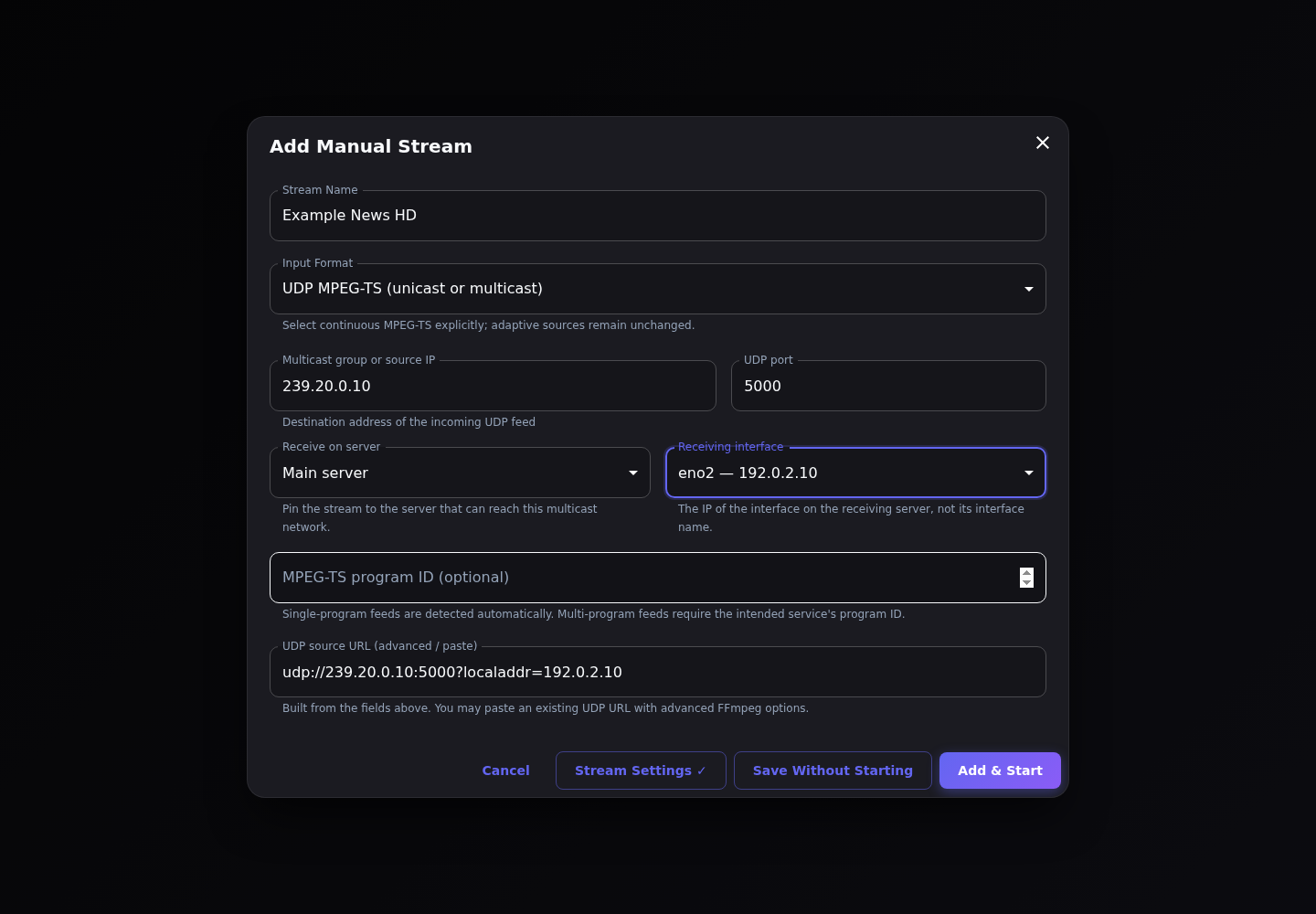
- Open Saved Library and choose Add Manual Stream. Enter a useful Stream Name.
- Choose Input Format: HLS / DASH / Social Live, Continuous HTTP MPEG-TS, or UDP MPEG-TS. Do not label a continuous TS URL as HLS just because it starts with HTTPS.
- For HTTP inputs, paste the source URL and configure required request headers/routing. For UDP, select the receive server and the interface with access to that multicast network.
- For multi-programme MPEG-TS, set the intended program ID when necessary. Probe tracks before choosing exact tracks.
- Save, start and verify the actual output. See Transport & Audio for UDP, metadata and audio processing.
Settings and effective scope
The stream settings modal supports individual and batch edits; the service Outputs modal offers defaults. Inherited choices use the applicable parent policy. Exact per-stream selections should override broad preferences. Stop an affected runtime before edits that require a new input/output timeline. Saving configuration is not the same as completing a restart.
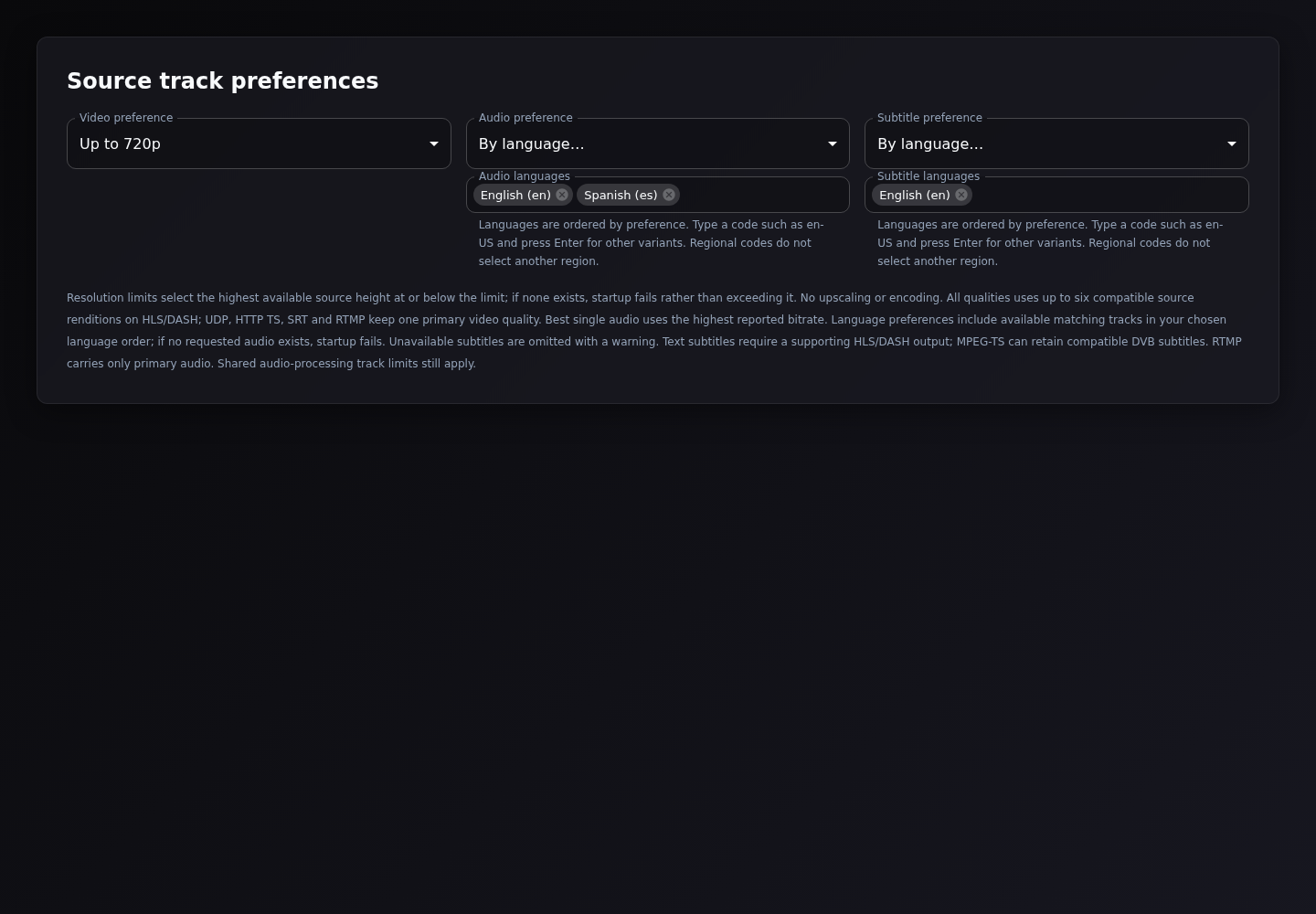
Choose source qualities and languages
| Choice | Meaning |
|---|---|
| Best / Lowest | Choose from available source renditions; no upscaling or manufactured quality. |
| 360p…2160p limits | Highest available source height at or below the limit. If none exists, startup fails instead of exceeding the cap. |
| All qualities | Up to six compatible source renditions for supporting HLS/DASH outputs; not a general-purpose multi-resolution transcoder. |
| Best single audio | Highest reported audio bitrate; not a guarantee of the preferred language. |
| By language | Choose one to six language codes in preference order. Regional tags are not silently replaced by a different region. |
| Exact source tracks | Uses probed source IDs. Re-probe when changing the source; another account may return different IDs. |
If none of the requested audio languages exists, startup fails. Missing requested subtitles are omitted with a warning. Available matching audio tracks can be retained; player support determines whether the viewer can switch them.
What each output can carry
| Output | Video and audio expectations |
|---|---|
| HLS / DASH | Compatible source multi-quality video and selectable audio/text subtitle tracks where configured and supported. |
| UDP / HTTP TS / SRT | One primary video quality; compatible audio tracks and compatible transport subtitles may be retained. |
| RTMP | One primary video and primary audio; it is not a multi-quality player menu. |
Additional outputs are configured separately from default HLS. Verify the receiving device’s codec and subtitle support. Enabling an output does not make an incompatible codec or audio layout playable.
Replace a failed provider account
- Keep the saved channel; open Manage stream source.
- Stop it first if the dialog reports a live, starting or recovering runtime. Wait for cleanup.
- Choose the replacement service/account and matching channel. Confirm the actual content, region and language.
- Review migrated settings and tracks, then apply. The saved output identity and collection links should stay with the channel.
- Start and test the existing public URL. Do not delete/recreate the channel as a routine account replacement.
Configure ordered backup sources
- Save and configure each alternate input in the Library first. The published channel and backups must be supported saved linear channels.
- Choose an explicit MPEG-TS or fMP4 HLS media format, not Auto. UDP output also needs an explicit service ID.
- Open the backup-source controls in Manage stream source. Add up to eight independent saved inputs and put them in order.
- Confirm that they carry the intended programme, region and language. Similar names do not prove equivalence. Enable Automatic source failover.
- Test in a maintenance window. Source failure can trigger controlled recovery; a worker infrastructure failure or invalid output configuration is not automatically fixed by rotating source accounts.
Names, categories and logos
Set a custom stream logo in stream settings, or keep the provider artwork when available. Subscriber categories should be meaningful channel categories—not an assumed provider or collection name. Review batch-edit previews so an empty selection does not unintentionally clear metadata. Cached artwork helps clients that cannot reach a provider CDN.
Read state, not just colour
A channel can be stopped by an operator, starting, running, retrying, failed or unknown. Unlimited restart attempts do not mean every failure is healthy. Check retained error and runtime information before migration or deletion. Logs remain useful when a stream is inactive. FPS and bitrate can be absent until a fresh measurement is available; a blank is not a synthetic zero.