 xOTT
xOTTVOD, downloads and storage
Browse providers, download a movie or season, use worker disks and publish a deliberate subscriber library.
On this page
Four different jobs
| Area | Purpose |
|---|---|
| Providers | Browse adapter categories, films, series, seasons and episodes. |
| Transfers | Queue and inspect downloads, processing and storage transfer progress. |
| Library | Curate playable movie/series records and publication status. |
| Storage | Manage tested worker, SFTP and configured cloud destinations. |
A provider catalogue entry is not a downloaded file. A completed download is not automatically a correctly entitled subscriber title. Review the library asset and its publication before selling access.
Download one film
- Open Content → VOD → Providers and choose a service/account with VOD support.
- Browse/search within its categories and pages. Open the film and probe available tracks.
- Choose video/audio/subtitles and a storage destination. Main server uses the configured local path; a worker destination runs the job on that worker.
- Queue the job and follow Transfers through download, processing and any remote transfer.
- Verify the finished asset, duration and audio before publishing it in Library.
Download a season or a full series
- Open the series, load its seasons and use Download season or Download full series.
- Review the preview: episode identities, available items, existing jobs and destination. Do not assume an unavailable episode has a playable manifest.
- Apply a consistent quality and language policy, then enqueue once.
- Inspect per-episode outcomes. A partially completed batch is not a reason to requeue every successful episode.
Use the worker’s large disk
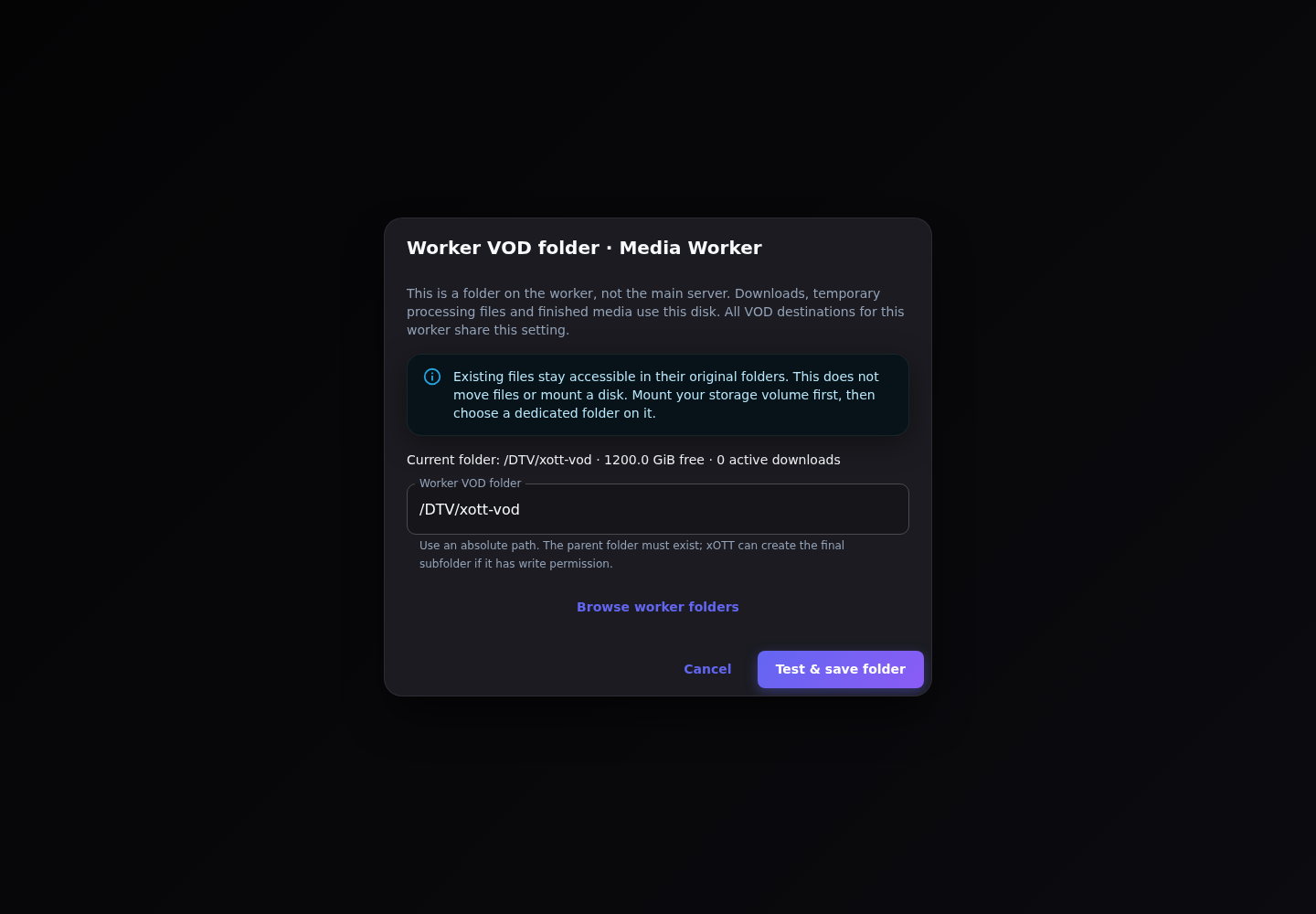
- Mount and permission the real storage volume on the worker first. xOTT does not mount disks merely because you enter a path.
- In VOD → Storage, add a native xOTT worker destination and choose a healthy licensed worker.
- Open Storage folder / Configure worker storage folder. Browse or enter an absolute dedicated folder, for example
/DTV/xott-vod. - Wait for active worker downloads to finish, then choose Test & save folder.
- Test the destination and select it for the film or series download.
SFTP and cloud storage are different
SFTP and configured rclone remotes transfer a completed file assembled on the main server. They are not native worker processing destinations and do not eliminate local scratch-space requirements. Select a worker when the goal is to move both download processing and storage off the main server.
- For SFTP, verify the SSH host fingerprint independently and use a dedicated writable folder.
- For cloud, configure the rclone remote under the xOTT service identity, reopen the dialog, add a dedicated folder and test it.
- A remote destination is not an automatically mounted POSIX filesystem. Cloud playback/publication depends on the supported asset path; do not promise arbitrary bucket URLs will behave like local files.
- Keep enough temporary space for concurrent jobs and transfer retries.
For the standard installation, the UI points to this rclone configuration command on the main server. Configure credentials privately; do not share the generated configuration file.
sudo -u xott rclone config --config /opt/xott/data/config/rclone.confA remote configured only in root’s default rclone file will not necessarily appear in xOTT. This command configures a remote; it does not mount a disk or transfer worker jobs to the cloud.
Import your own media
Use VOD → Library to create/manual-import supported media from configured storage. Preview file candidates, metadata, season/episode numbering and duplicates before importing. Associate episodes with the correct series. Probing validates media; a filename alone does not prove codec compatibility or correct numbering. Publishing grants subscriber visibility only through a collection/package that includes the title.
Publish to M3U, Xtream and xOTT Play
- Verify the asset is complete and supported, then publish the Library title.
- Include the relevant VOD titles or rules in a collection.
- Use a published package version with movie/series/recording outputs enabled as needed.
- Test with an entitled access line in the native player and any intended Xtream client.
- Check seeking and audio/subtitle support on the actual client; current VOD file delivery is not a live adaptive transcoding service.
When a download fails partway
Read the job’s error and processing/transfer stage. Check free space on the processing host, destination verification, proxy assignment, manifest expiry and selected tracks. A progress percentage is not an integrity check. Preserve diagnostic information before deleting job history. History cleanup is not a storage-capacity strategy.