 xOTT
xOTTDRM Services and Chromium runtime setup
Manage authorized Widevine/PlayReady provisions and opt-in Chromium/CDM runtimes without confusing host readiness with provider compatibility.
On this page
What this feature does—and does not do
Settings → DRM Services keeps supported device/runtime inventory and saved service/account preferences together. It is not a content subscription, an entitlement override or a promise that every service accepts every runtime. Use only material, accounts and content you are authorized to use.
| Inventory | Purpose |
|---|---|
| Widevine / PlayReady | Manage supported, authorized device provisions and compatible script preferences. |
| Chromium | Prepare/register an optional local browser/CDM runtime for supported native on-demand/VOD processing. |
No Chromium browser/CDM bundle is installed merely by enabling a source account. Runtime preparation is explicit. Provider behavior, account region and source capabilities still determine availability.
1. Manage device provisions carefully
- Open the relevant Widevine or PlayReady tab and inspect the existing inventory before adding a preference.
- Import only a supported provision you are authorized to use through the offered upload control. Do not post device files or secrets in support tickets.
- Review parsed details, enabled state, existing references and active uses. Parsed metadata is not a successful provider playback test.
- Use Set preference for a service/account only when the adapter supports the managed selection.
- Test one authorized source. Keep working defaults unless you have a reason to change them.
Account preferences take priority over service preferences. Existing provider-specific device choices have priority over the fallback default. A broad fallback setting is not a command to replace every adapter’s working profile.
2. Prepare a Chromium/CDM runtime
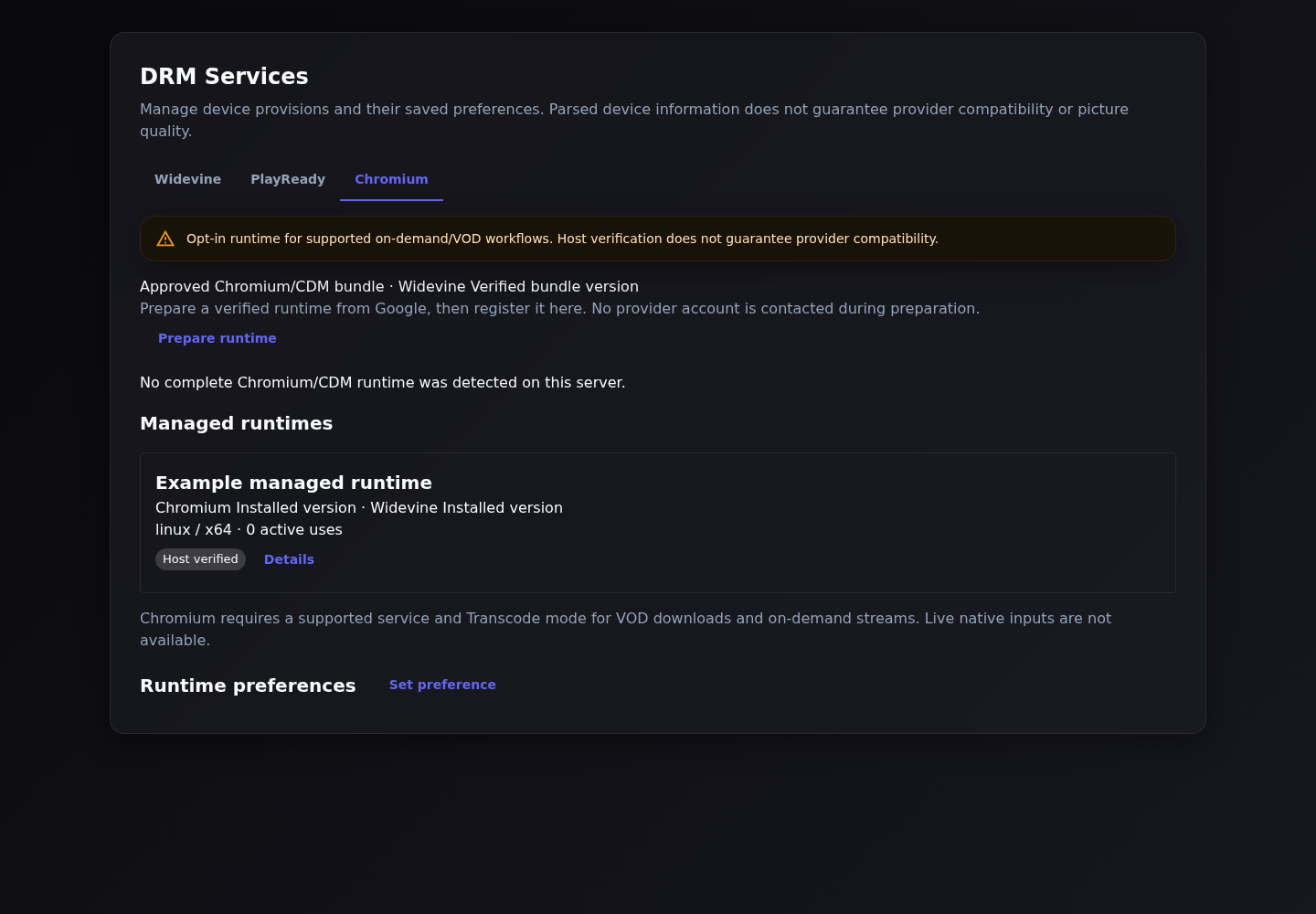
- Open the Chromium tab. Read the supported-host and workflow message shown by your installed version.
- Choose a listed supported bundle and click Prepare runtime. Follow the preparation phase/progress; this downloads/verifies a runtime and does not log in to a provider.
- When a complete installation is detected, choose Register runtime. Wait for host verification; an incomplete/detected browser is not ready.
- Inspect its enabled state and runtime details. Use Set preference to bind the intended supported service or account.
- Configure an enabled Transcode profile, then test one supported on-demand/VOD title on the same host.
3. Distinguish adapter coverage from qualification
The v2.0 release records scoped qualification for supported Netflix controller-local Chromium VOD workflows up to 1080p with optional transcoding. That is not a universal statement about every Netflix title, host, account or provider. Other adapters retain their own supported DRM and copy-mode paths. Read service-specific status and test the actual account rather than switching all services to Chromium.
Chromium runtime preparation on the main server does not provision every worker. Host platform, runtime availability, file access, processing policy and capacity must match the job placement.
4. Change preferences without breaking active work
- Inspect active uses and affected saved preferences before disabling/removing a device/runtime.
- Use the offered replacement/acknowledgement workflow; clearing a preference is different from deleting the runtime.
- Do not delete an active runtime folder manually or replace vendor binaries behind a registered identity.
- Restore through the supported UI when available; revalidate host readiness after changes.
- Existing references and provider defaults deserve deliberate migration, not blind rotation.
5. Diagnose the correct layer
| Observation | Next check |
|---|---|
| Runtime detected, not registered | Complete preparation and register/host-verify it. |
| Host verified, provider fails | Supported adapter/action, account rights, region/routing, provider response and job diagnostics. |
| No processing profile/capacity | Media Processing policy, profile revision, readiness and host admission. |
| One source fails but others work | That exact account/title/request path; do not infer every device is invalid. |
| Successful browser playback elsewhere | It proves that client’s session works; xOTT’s host/runtime/account routing can differ. |
Share only redacted diagnostics. Never upload account tokens, device material or real signed playback URLs into public bug reports.